DeepSeek went from unknown to everywhere in a few months. The sidebar never grew with it: every conversation since day one sits in a single, dated list.
Fifty chats in, that is a mild annoyance. Five hundred chats in, the list has quietly stopped being usable.
DeepSeek chats are also heavier than most. The model reasons in long, step-by-step chains, so you rarely just want the right conversation back. You want message 34 of it.
Folders solve the first problem, highlights solve the second. Let us take it from the top.
Does DeepSeek have folders?
No. There are no DeepSeek folders in the product itself: no way to group chats, no subfolders, no nesting, and no project workspaces of the kind other AI tools have started shipping.
Of the major AI chat apps, DeepSeek ships the least organization. The two exceptions, a pin and a rename, are covered below. Neither groups anything.
The minimalism is a design choice, and it keeps the app fast. It also means the fix has to come from outside: your own habits, or a browser extension that adds the missing layer to the sidebar. This page covers both, in that order.
The 3 features DeepSeek ships instead of folders
Three native features touch your chat history. Here is what each one does, and where it ends:
The sidebar history
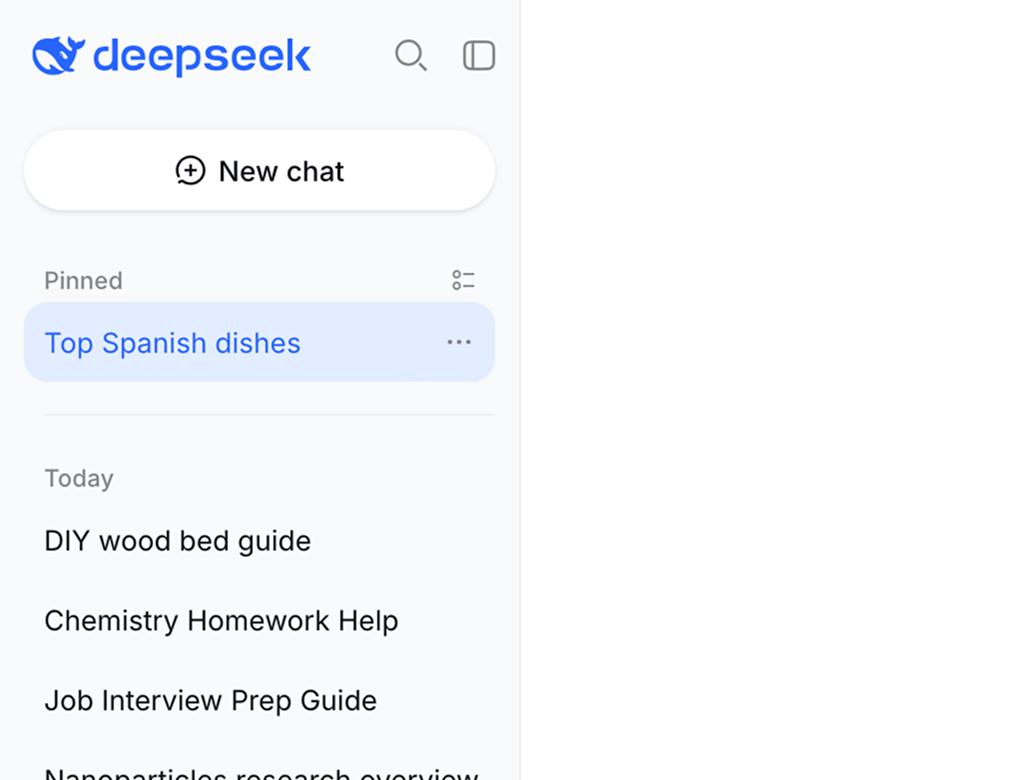
Every conversation is saved to your account and listed newest first, on whatever device you sign in from. Nothing gets lost, which is genuinely reassuring.
Chronology is the only order there is, though. Yesterday sits on top, and the breakthrough from six weeks ago sits wherever six weeks of chatting have pushed it.
Pinning chats
DeepSeek now lets you pin a chat so it stays at the top of the sidebar. For the three or four conversations you reopen daily, that is a real improvement, and you should use it.
A pin is a shortlist, not a structure. Pin fifteen chats and the pinned block becomes its own unsorted list, and no pin can say which chats belong together.
Renaming chats
You can rename any conversation, and a deliberate title beats an auto-generated one every time.
Renaming makes single chats easier to recognize. It does nothing about the shape of the list: five hundred perfectly named chats are still five hundred lines of chronology.
Pinning vs. DeepSeek folders
The pin is the strongest of the three, so it deserves the honest side-by-side. Here is where a pin serves you well, and where only a folder system does the job:
| Capability | Pinning | Real folders |
|---|---|---|
| Keep favorites on top | Yes | Yes |
| Group chats by topic or project | No | Yes |
| Subfolders and nesting | No | Yes |
| Covers your whole chat history | Limited | Yes |
| Jump to the answer inside a chat (highlights) | No | Yes |
| Works across other AIs | No | Yes |
How to organize DeepSeek chats without an extension: 2 workarounds
If you would rather not add anything to your browser yet, two habits can imitate DeepSeek folders to a degree. Both work, and both have a known breaking point:
1. Naming conventions
Put a tag at the front of every title you care about, like "[Thesis] Methodology draft". The tag turns the sidebar search into an almost-folder: filter for the prefix and the related chats line up together.
The weak spot is the word every. The system only holds if you tag each new chat, forever, and the untagged ones, including everything from before you started, stay invisible to the filter.
![A naming convention standing in for DeepSeek folders: filtering for the prefix [Thesis] lines up tagged chats like [Thesis] Methodology draft, while an untagged chat slips through](assets/img/deepseek-naming-convention.svg "DeepSeek naming convention")
2. An external link index
Every DeepSeek conversation has a stable address, so you can collect links to your most valuable chats in a note, a doc or your bookmarks.
That gives you a hand-maintained shelf of greatest hits. It holds only what you remember to add, and each link drops you at the top of a long conversation, not at the answer you saved it for.
Both workarounds trade discipline for a rough imitation. Neither gives you nesting or a way back to a specific passage. That gap is what the extension closes.
Real DeepSeek folders with a free browser extension
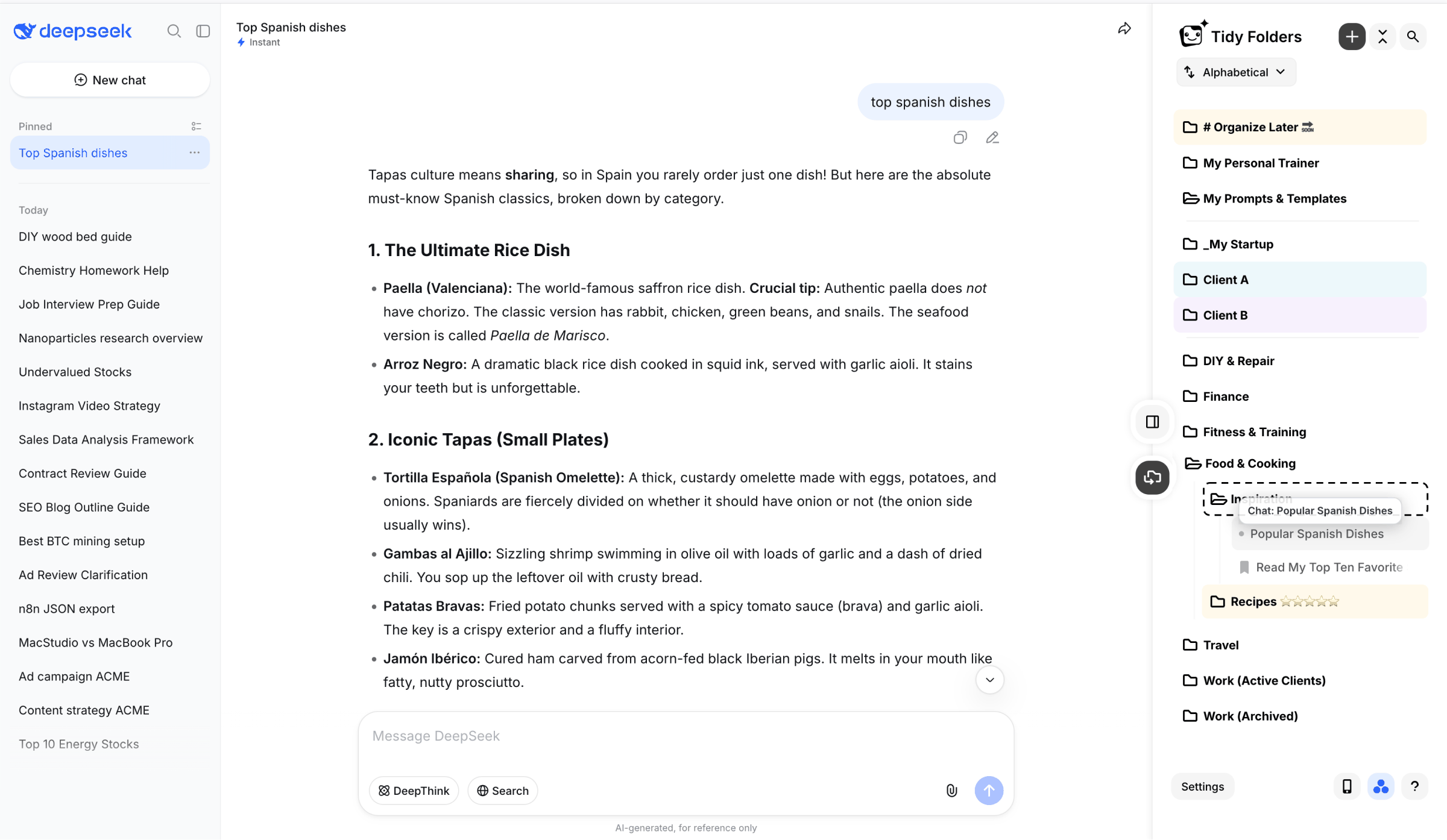
Habits cannot change the sidebar. An extension can. With Tidy Folders installed, chat.deepseek.com gets an actual filing system:
- Create folders and subfolders, then drag conversations in. Group by project, topic or client, and reorder whenever your work changes.
- File what already exists. You do not start at zero: your entire existing history can be sorted into the structure, chat by chat.
- Colors and dividers turn the folder list into something your eyes can parse before you have read a single label.
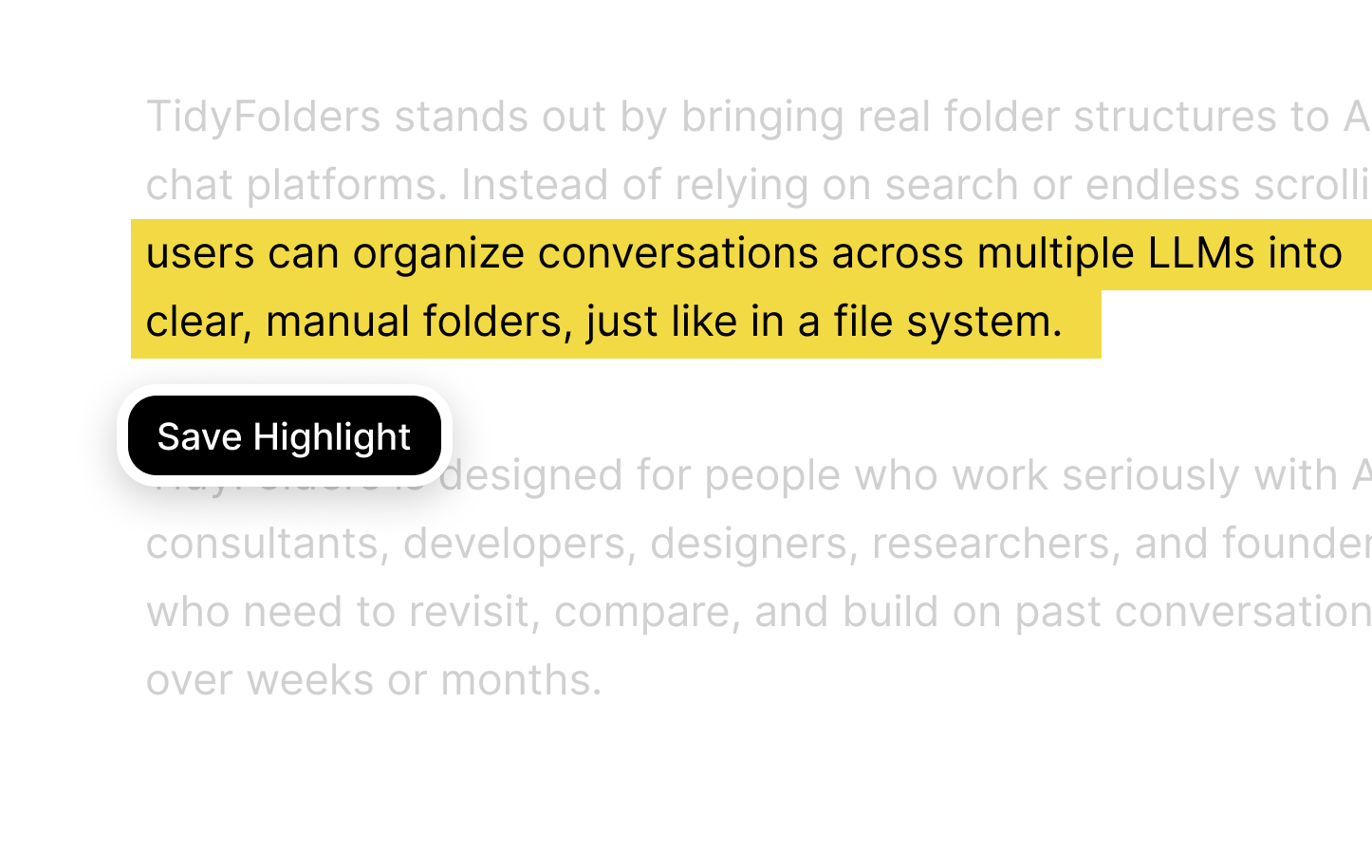
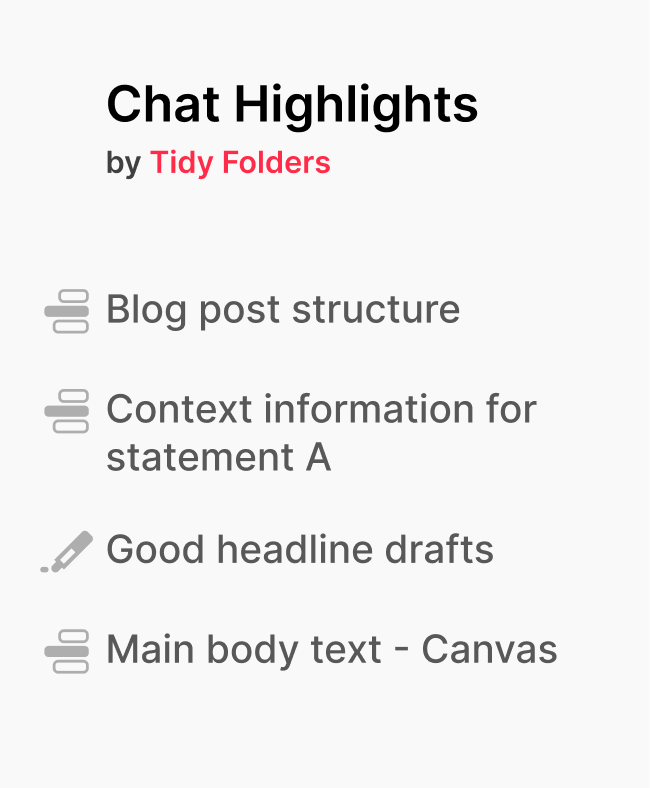
- Highlight key passages, and every mark becomes a saved jump-link that lands you back on that exact spot.
Setup takes 3 steps: install, open chat.deepseek.com, create your first folder. The extension is free.
Text highlighting: one click back to the key passage
DeepSeek's signature strength is depth: it walks through a problem step by step, and one good answer can run to several screens.
Depth is great on the day you ask. On the day you return, the conclusion you need is buried inside it.
Text highlighting fixes that. Mark the decisive step once, and the mark becomes a jump-link: one click brings you back to that exact passage, no scrolling. Filed and highlighted, your DeepSeek research works like a reference library instead of a pile of transcripts.
4 rules for a DeepSeek folders structure that keeps working
A structure survives when it costs nothing to maintain. Four rules get you there:
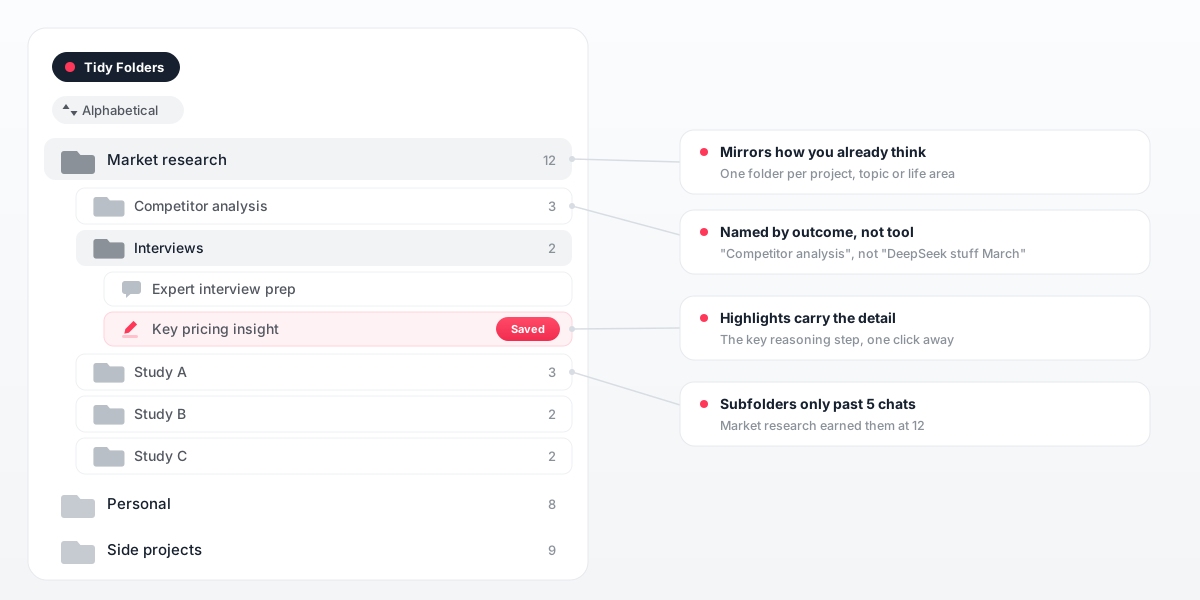
- Copy your own head. If you think in projects, make project folders. A borrowed taxonomy is a second job.
- Stay shallow at first. A handful of top-level DeepSeek folders covers most weeks; give a folder subfolders only once it passes roughly 5 chats.
- Name by outcome, not by tool. "Competitor analysis" will still mean something in March. "DeepSeek stuff" will not.
- Let highlights do the fine sorting. The folder finds the conversation, the highlight finds the sentence.
9 DeepSeek folders examples that make old chats findable
Everyone files differently, yet the same setups keep showing up. Here are nine. Expand the one that resembles your own sidebar:
Paper and study research: a folder per literature question
Sessions where DeepSeek walks through a paper or untangles a body of literature deserve better than a chronological list. Give each research question its own folder and park every related session inside it. Highlight the passage where the model states its verdict on a source, and the next citation check starts at that sentence instead of at message one.
Math and statistics: keep the full derivation, jump to the result
A step-by-step derivation is exactly what you asked DeepSeek for, and exactly what you do not want to re-read in week six. Folders per subject or problem set keep the derivations together. A highlight on the final formula or the decisive step gives you the result in one click while the full reasoning stays attached above it.
Coding and debugging: one folder per repo or feature
Debugging sessions blur together fast because every title mentions the same error words. Sorting them by repository or feature restores the context, and marking the change that finally compiled turns each session into a lookup rather than a re-read. The folder becomes a changelog of solved problems.
Data analysis: methods and interpretations, filed by dataset
Questions about the right test, the odd distribution or a confusing coefficient tend to come back with every new dataset. A folder per dataset or analysis project collects them, so the reasoning behind an earlier decision is findable when a reviewer asks. Highlights mark the interpretation you actually acted on.
Thesis work: chapters as subfolders, months of chats in order
A thesis produces DeepSeek conversations for a year or longer, spread across methodology, related work and every chapter draft. One thesis folder with a subfolder per chapter keeps that long arc navigable. When the defense nears, the highlighted key arguments read like a prepared crib sheet.
Technical comparisons: decisions with their reasoning attached
Framework A or B, this database or that one: DeepSeek argues these trade-offs thoroughly, and the argument is worth keeping. A Decisions folder stores each comparison, with a highlight on the recommendation and its main reason. Months later you can show why the stack looks the way it does instead of reconstructing it from memory.
Translation and language help: phrasings you will need again
Translations, tone rewrites and grammar explanations pile up quickly and are painful to relocate by scrolling. Folders per language or per document type keep them apart. Highlight the phrasing that landed well, and reuse beats retranslating every time.
Career: applications, interview prep and negotiation notes
Anything touching your career benefits from a paper trail. A folder per application or per goal holds the tailored materials, the prep questions and the salary reasoning in one place. Six months on, you still know what you told which company.
Personal projects: hobby research away from work chats
The home server, the garden plan, the training schedule: personal threads deserve folders too, if only to keep them out of your work view. One folder per project draws that line, and a highlight on the working configuration or the chosen plan saves the next weekend session.
Nine setups, one common thread: the folder recovers the right conversation, the highlight recovers the right passage inside it. With reasoning chains as long as DeepSeek's, you want both layers.
One folder system: DeepSeek folders, ChatGPT, Claude, Gemini and Grok
DeepSeek is probably not your only AI. Tidy runs one folder system across DeepSeek, ChatGPT, Claude, Gemini and Grok, so a single research folder holds the DeepSeek analysis next to the draft it fed elsewhere. No native feature in any of the five can do that. More at tidyfolders.com.
DeepSeek folders: FAQ
Does DeepSeek have a folder feature?
No. DeepSeek keeps every conversation in one chronological sidebar, with no way to group chats by topic or project. Real DeepSeek folders come from a browser extension such as Tidy Folders, which adds them directly to the sidebar.
Can I pin chats in DeepSeek?
Yes. A pinned chat sits anchored above the DeepSeek sidebar list. Treat it as a shortlist for the two or three conversations you touch daily; it cannot group related chats, and it does not scale to a full history.
How do I organize my DeepSeek chat history?
Without installing anything, you can pin favorites, rename chats and keep an external link index. For actual structure, the Tidy Folders extension adds folders and subfolders to chat.deepseek.com, and it works on every chat you already have.
Can I organize DeepSeek and ChatGPT chats together?
Yes. The Tidy Folders extension gives DeepSeek, ChatGPT, Claude, Gemini and Grok one shared folder tree, so the research, drafts and code for one project sit together no matter which AI produced them.
Is Tidy Folders free?
Yes. Tidy Folders is a free extension, and installing it takes about a minute. You can start filing your DeepSeek chats right away.
Does DeepSeek save my chats?
Yes. Your conversations on chat.deepseek.com are stored in your account, so they are waiting in the sidebar when you sign in again. Saved is not the same as findable, though: the list stays chronological, and that is the part folders fix.
How do I find old DeepSeek conversations?
Natively, you scroll back through the sidebar until a title looks familiar. With the Tidy Folders extension, a chat filed in a folder has a fixed place you reach in one click, and a highlight you marked earlier takes you to the exact passage inside the conversation rather than dropping you at the top.
Are DeepSeek folder extensions safe?
A fair question for any extension: check which data it touches. Tidy leaves your conversations untouched, transmits nothing, and keeps only the highlights you explicitly mark yourself.